
Connect case records
and accounting entries.
Your case system holds the matter. Your accounting system holds the books. Your bank holds the funds. Disbo is the payment and ledger layer between them, keyed to the case number, so nothing is retyped and the three records agree.
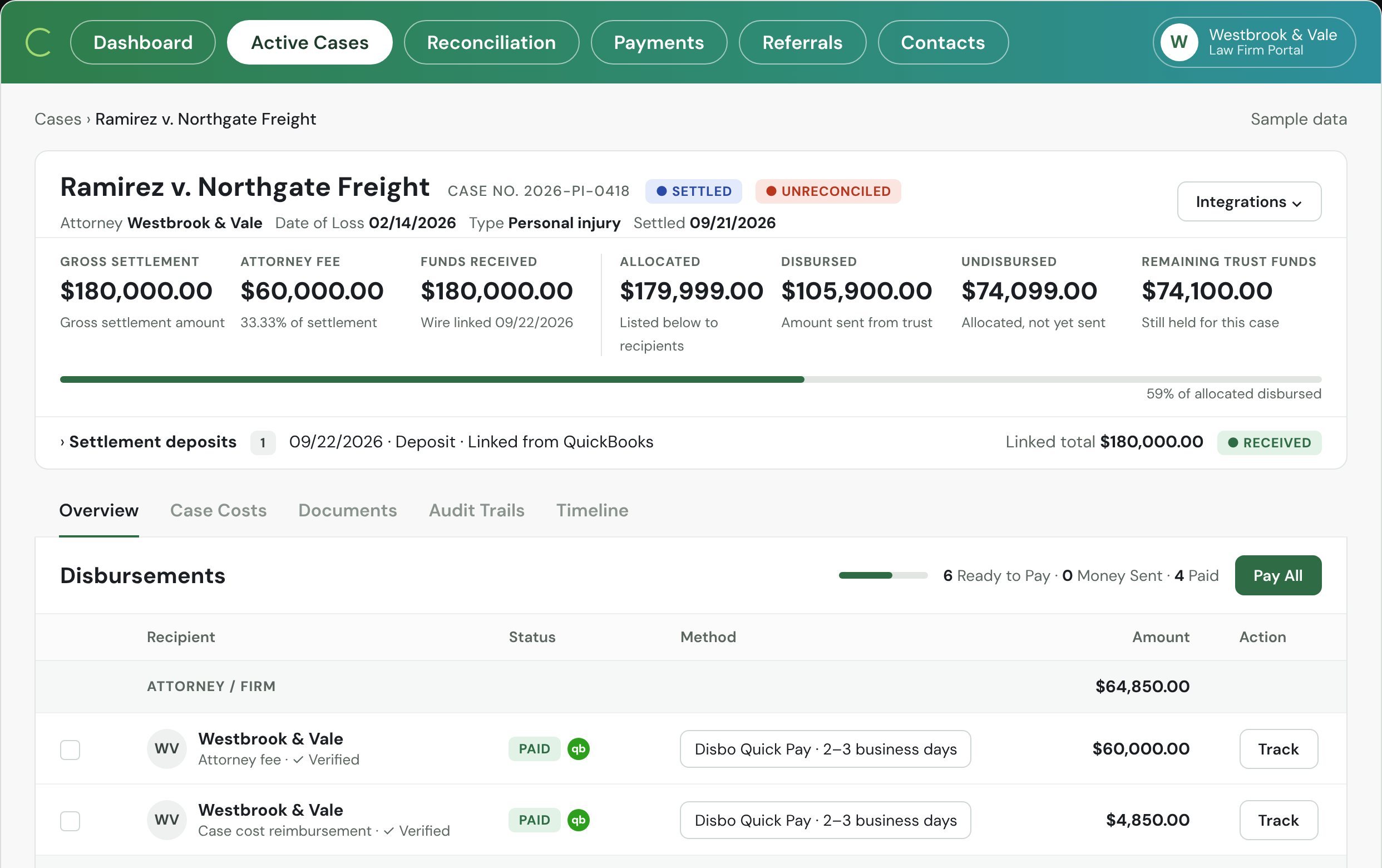
How a connection works.
Each integration is authorized by your administrator, scoped to what the feature needs, and can be disconnected at any time without losing the records already in Disbo.
- Step 1 · Connect
Authorize from inside Disbo.
Your administrator signs in to the case system and the accounting system through each provider's own authorization. Disbo asks only for the permissions the features you turn on require. No software is installed on your machines.
- Step 2 · Cases flow in
The matter and the people arrive on the record.
Case, client, defendant, date of loss, settlement amount, payees, liens and documents come in from the case system. Deposits are matched from your books and your bank.
- Step 3 · Payments post out
Every payout lands in the books, tagged.
Deposits, payouts and case costs post to QuickBooks Online, Sage, NetSuite or Xero against the case. Void and reissue post as a pair. Your chart of accounts, vendors and customers are read, never rewritten.
- Step 4 · Status comes back
The case system learns what happened.
Payment status, cleared date, check number and image, and the documents that were mailed go back to the case, so the team that lives in the case system sees it there. What is written back depends on the system; we confirm the scope on your setup call.
Three systems,
one case key.
Everything Disbo reads or writes carries the case number, so the three records agree without anyone reconciling them by hand.
The matter and the people.
- Case, client, defendant, date of loss, settlement amount
- Payees, liens and the closing statement
- Documents attached to the matter
- Payment status, cleared date, check number and image
- Documents mailed; undisbursed balance on the case
The books, tagged to the case.
- Chart of accounts, vendors, customers (read only)
- Settlement deposits to trust, matched to the case
- Each payout, by payee and case
- Case costs from operating, reimbursed from the settlement
- Fee transfer to operating when the sheet is paid
What actually cleared.
- Deposits matched to the case they belong to
- Cleared checks, with the image
- ACH settled, with the trace
- Linked through Plaid; no credentials stored









 Xero
QuickBooks Desktop uses a custom-built connection set up with our team. CSV import is an independent option for any firm.
Every system we connect to.
Each page explains what comes in, what goes out, and what your administrator authorizes.
Case management
Cases, parties, settlement tab, documents in; payment status and check images back to the project.
How it connects →Available, ask usCase management
Cases, parties, liens and documents in; payment status back to the case.
How it connects →LIVECase management
Matters, contacts and documents in; payment status back to the matter.
How it connects →LIVECase management
Cases, providers and liens in; payment status back to the case.
How it connects →Available, ask usCase management
Matters and parties in from Salesforce; payment status back.
How it connects →Available, ask usCase management
Cases, contacts, value codes and costs in; payment status appended to notes.
How it connects →LIVEAccounting
Deposits, payouts and case costs posted against the case; chart, vendors and customers read only; month-end prepared from the trust ledger.
How it connects →Available, ask usAccounting
Deposits, payouts and case costs posted to Sage Intacct against the case.
How it connects →Available, ask usAccounting
Deposits, payouts and case costs posted against the case.
How it connects →Available, ask usAccounting
Deposits, payouts and case costs posted against the case.
How it connects →LIVEBank linking
Your IOLTA and each payee's bank are linked by the account holder signing in to their own bank. Disbo never sees credentials; account numbers stay masked.
How it connects →Available, ask usAccounting
A custom-built connection installed by our team on the machine that hosts your company file. Keep Desktop; post each payout to your books.
How it connects →CSV import
Import a case list and a payee list exported from your system.
Funds, approvals and audit records.
Three questions your accounting team asks about connected systems. Tap one.
Who has looked at this?
The flow of funds has been reviewed with the State Bar of California and IOLTA.org. Fees come only from operating. Every payout is tied to a case and a payee. Disbo charges nothing to your clients and has no law firm investors.
What does the audit log show?
One log per payment: who prepared it, who approved it, and when it was sent, delivered, and cashed. Uncashed checks are aged by days outstanding. Every open case shows its settlement, what is still in trust, and who has been paid, so nothing lives in a side spreadsheet.
Who can see our documents and bank details?
Privileged firm documents are accessible only to a two-person, US-based support team under NDA. Payees link their own bank through Plaid with a government ID on file, so routing and account numbers never live in Disbo and an emailed bank change can't change anything.
Questions about integrations
We have several entities, IOLTA accounts and QuickBooks files.
One Disbo organization holds every bank account and up to two QuickBooks connections per entity; each case carries its own trust and operating account. Routing a case to a specific QuickBooks file is set up with our team.
Our case numbers don't match between systems.
You need a case number in both systems. Disbo matches on case number first, then name and date of loss (about 80% match on their own); our team clears the rest with you during setup.
What permissions does Disbo ask for?
Only what the features you enable need, through each provider's own authorization screen. A detailed list of scopes and fields is available on request, and your administrator can revoke the connection at any time from the provider or from Disbo.
What happens if we disconnect?
Nothing is deleted. The cases, payments and documents already in Disbo stay; the sync stops. Reconnect and it resumes.
Does anything get written into our accounting system?
Yes, entries: the settlement deposit, each payout, case costs and the fee transfer, each tagged to the case. Your chart of accounts, vendors and customers are read, never rewritten, and you choose the accounts at setup.
Our books are a mess. Can we still connect?
Yes. Connecting is the first step of bringing your books in reconciled to zero: customers, vendors, deposits, matching, then the trust audit. Back-dated history is a scoped project we plan with you.
Do you connect to our bank?
Through Plaid. You sign in to your bank once; Disbo gets a token and the account and transaction data it needs for matching and payment, never your login. One-time payees paid by check need no link at all.
Connect your stack
on the setup call.
Tell us your case system and your books. We connect both while you watch.
Book a free demo